

On this page
YouTube SEO
YouTube SEO: Everything You Need to Know (2022)
Today, video content is an essential part of any video marketing strategy. Videos continue to rise in popularity, which is why marketers don’t shy away from investing in them.
81% of marketers say videos directly affect their sales. 86% of them say video has helped them generate more leads for their business.
YouTube SEO is arguably the most impactful form of video marketing.
In this article, we’ll tell you how you can rank your YouTube videos and which SEO tools can help you do that.
Let’s dive in.
YouTube SEO Meaning
YouTube SEO is a practice of optimizing every aspect of a YouTube video to make it rank higher in the search results (Google and YouTube).
The good thing is: Unlike website SEO, you don’t need backlinks to rank your YouTube videos on the first page of the search engine.
YouTube SEO mainly includes:
- Keyword research
- Optimizing your video
- Optimizing video title, tags, and description
But, of course, there’s a lot more to YouTube SEO optimization.
Let’s give you some actionable YouTube SEO tips to help you rank your videos at the top.
YouTube SEO Tips
Include Your Target Keyword in Your Video File
One of the first things you need to do while creating a YouTube video is, find your target keyword/s.
Just like when you want to create written content.
Thankfully, there are multiple free and paid keyword research tools that can help you with this step.
You can read about the top keyword research tools here.
After finding your target keyword, the first place you want to include it is your video’s file name.
Why’s that?
Because YouTube can’t see your video to understand what it’s about.
Unlike Google where the bots crawl your written content to see if it matches the search.
And, the truth is there aren’t many places on YouTube where you can insert your target keyword to help the algorithm.
The good thing is that YouTube can read your video file name and the data that it contains.
So, what you can do is replace the video file name with your target keyword.
For instance, if you want your video to appear in front of people searching for “Gardening tips”, your video file name should be “Gardening-tips”.
Use Your Target Keyword in Your YouTube Video’s Title
The title of a video is the first thing a searcher’s eyes are drawn to. This is why your click-through rate majorly depends on it.
So, your video titles need to be catchy, concise, and clear.
Plus, including your target keyword in the title can also help your video’s YouTube ranking.
It also increases the chances that the user will click on your video link.
That said, search algorithms are continuously improving. So, your ranking doesn’t depend on whether the title has the exact keyword phrase or not.
In fact, a study by Backlinko reports that there is a weak relationship between rankings and keyword titles.
Therefore, you should only include the exact keyword in your video’s title when it makes sense and fits naturally.
Lastly, it’s a good idea to keep the title short, ideally under 60 characters, as there is a chance it can get cut off on the results page.
Optimize Your Video Description
Your YouTube video’s description is the place where you can include detailed information.
However, keep in mind that YouTube only allows up to 5000 characters in the description.
What this means is that you need to concisely communicate your message there.
Keep in mind that viewers are there to watch your video, not to read an essay.
Importantly, including your target keyword in your video description can also help the platform rank it for relevant search queries.
After all, it’s a video search engine.
Also, know that YouTube only shows two or three lines of text or about 100 characters.
And, if a visitor wants to read more, they’d have to click on the “Read more” option.
That’s why it’s a good idea to include the most important information or keywords right at the beginning of your description.
Plus, to further optimize your video, what you can do is add transcription. By doing that, you can also target the people that have to watch your video without volume.
With that being said, according to research, there is no direct correlation between a keyword-optimized description with a video’s ranking.
But, that shouldn’t keep you from including your target keyword in the description a few times naturally.
A keyword-optimized description does help you show up in the “Related Videos” section of YouTube, which can be a great source of traffic, too.
Include Relevant Tags
YouTube video tags are important. By using them, you’re essentially informing the video search engine what your video is all about.
But, that’s not it. Your tags also let the users know what they can expect from your video.
The platform also uses these tags to get a sense of your video’s context.
As a result of that, YouTube can better able to associate your video with other related videos.
And that can be pretty helpful in broadening your video’s reach.
That said, you don’t want to use irrelevant tags just to attract some more eyeballs.
It’s a practice that can end up hurting your YouTube SEO, which you don’t want.
Also, make sure to include all related keywords as video tags, starting with the important ones.
A mix of both short and long-tail keywords should do the trick.
If you don’t know which tags to include in your video, you can always research your competitors.
Now, there are essentially two ways of finding competitors’ tags on YouTube.
Manually Finding Competitor’s YouTube Tags
Just go to the video you want to find the tags of, and right-click anywhere.
Choose “Inspect page source” and go to the page.
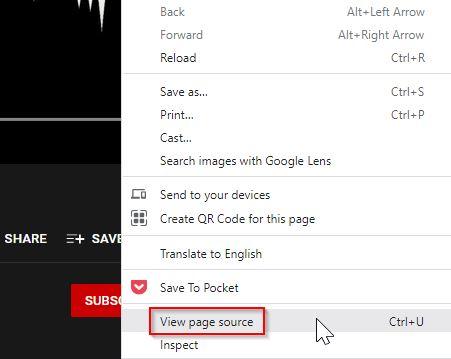
Press “Ctrl + F” and type in “Keywords”.
You’ll be able to see the video tags separated by commas.

Now, if you’re not very comfortable doing all that, there’s a free browser extension that makes things easier for you.
Using Tube Buddy to Find Competitor’s Video Tags
Just install Tube Buddy’s browser extension here and play the video.
The free extension will showcase that video’s tags on the right side of the page.
Categorize Your Video
When you put your YouTube video in the right category, the algorithm puts it with other relevant videos.
It can help your video get more exposure for the target keywords.
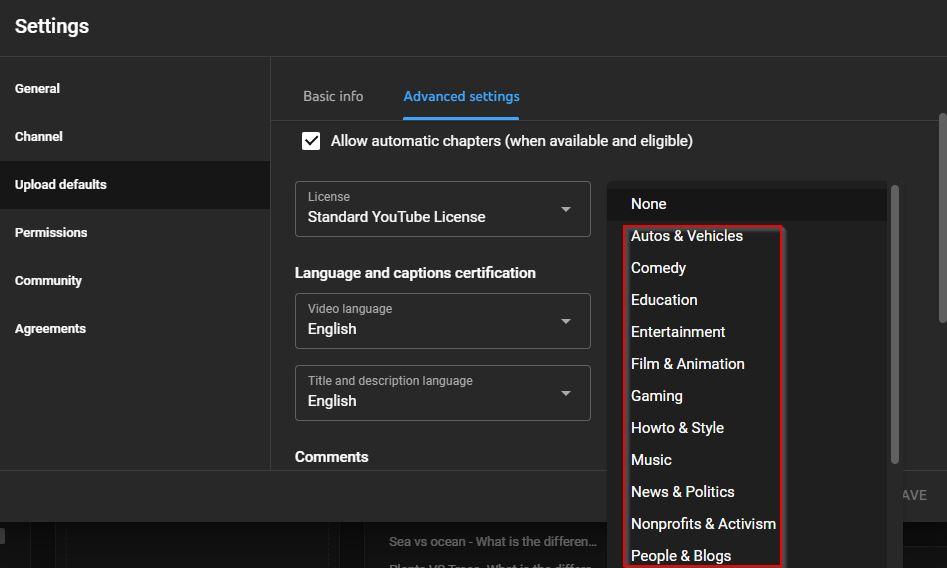
After uploading your video, you can put it under a suitable category under the “Advanced settings” option.
However, determining which category your video belongs to isn’t always as simple as one might think.
In fact, Creator Academy suggests that you go through a process to find the best category for your videos.
Think about:
- Who the top content creators are within a particular category? What are they doing well that makes them popular?
- How do the videos and audiences within a particular category relate to each other?
To change the category of your video, go to:
- Creator Studio
- Settings (on the left)
- Upload defaults
- Advanced settings
- Category
Upload a Custom Thumbnail
Your YouTube video’s thumbnail is the first thing that catches the attention of a person scrolling their YouTube feed.
Your thumbnail tells a lot about the content of your video and helps a viewer decide whether they should click on it or not.
So, a thumbnail can significantly impact your YouTube video’s views; as a YouTuber, you can’t afford to ignore its importance.
Now, you have the option to let YouTube pick the thumbnail for you. It auto-generates an image after analyzing your video content.
However, that’s not a best practice. Instead, you want to upload a custom thumbnail.
According to YouTube Creator Studio, an overwhelming majority of the best-performing YouTube videos have custom thumbnails.
Thankfully, you don’t need graphic design experience to design an attractive YouTube thumbnail these days.
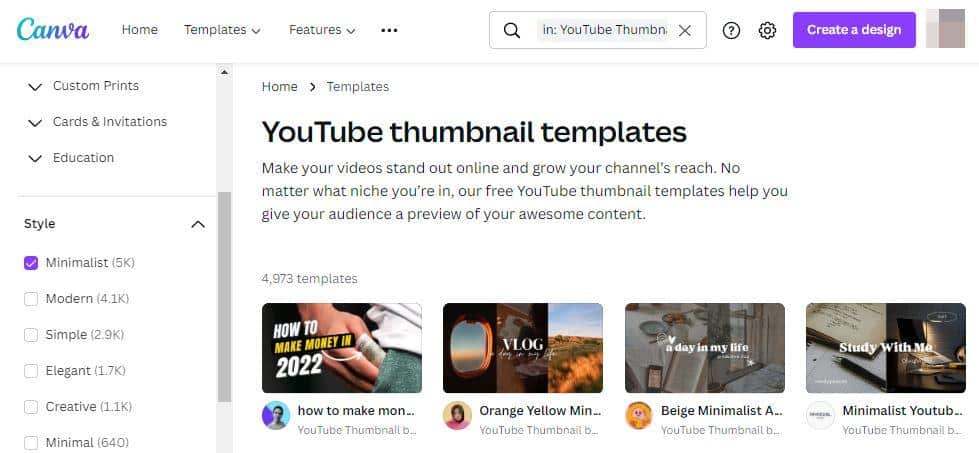
You don’t even have to design something from scratch. Tools like Canva have ready-made designs that you can edit and reuse for commercial purposes, for free.
The recommended YouTube thumbnail size is 1280×720 pixels in the 16:9 ratio. The supported formats are .jpg, .gif, .bmp, and .PNG.
Sticking to the guidelines will ensure that your video appears in the best possible form in different places on the web.
However, keep in mind that you need a verified YouTube account to use custom video thumbnails.
Add Subtitles and Closed Captions
We’ve talked about how your YouTube video’s title, description, and tags can help you rank higher for your target keywords.
Video subtitles and closed captions have their own role to play in YouTube SEO.
They can also help with search optimization by highlighting the main keywords.
Now, there are two ways to add subtitles or captions to a video:
- You can upload a supported file
- Or, you can enter your text on YouTube and it’ll auto-sync it with the video
Did you know? Closed captions are typically used to help people with hearing problems. So, they include the background sounds and other non-verbal communication as well.
Here’s how you can upload subtitles on YouTube.
Go to the Creator Studio. You’ll find it after clicking the image at the top right corner
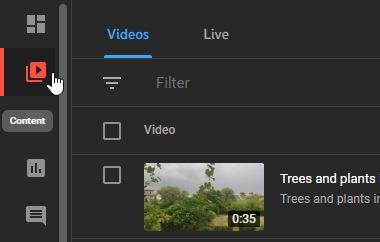
Click on the “Content” icon on the left side
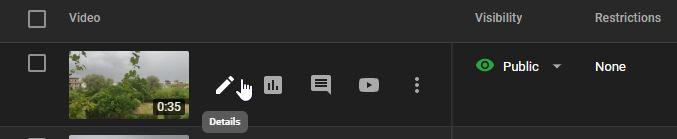
Then, click on the “Edit” icon under the video you want to add subtitles for.
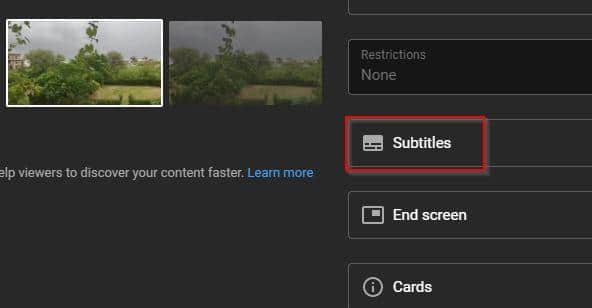
Scroll down a little; you’ll find the “Subtitles” option to the right.
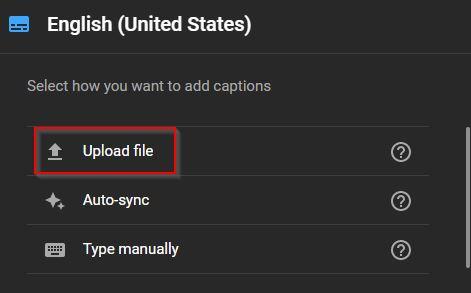
Lastly, click on “Upload file” and select the file you want to add.
Add Cards and End Screens
Cards
If you’ve ever seen a small circular icon with an “I” in the middle appear at the top right corner of a YouTube video, you know what YouTube cards are.
The video hosting platform lets you add up to 5 Cards in a single video.
The cool thing is that you can include clickable links in these cards.
YouTubers often use “Cards” to get their viewers to subscribe, or view other related content on their YouTube channel.
Here are the six types of YouTube Cards you can use in your videos:
- Channel Cards: To redirect viewers to a different channel
- Donation Cards: In order to encourage fundraising
- Fan Funding Cards: To ask viewers for support
- Link Cards: To direct users to an external website
- Poll Cards: To ask questions from your audience and get responses
- Video or Playlist Cards: To link to other related content on YouTube
End Screens
End screens are a bit like cards. The information they display is somewhat similar.
However, as the name suggests, end screens come at the end of a video.
Plus, they tend to be a little more visually detailed than cards.
You can use YouTube end screens in the last 5–20 seconds of your video.
End screens can help you get your viewers to subscribe, promote other videos, and more.
However, to use end screens on YouTube, your video needs to be at least 25 seconds long.
So, how to add end screens and cards to a YouTube video?
Remember the steps we followed in order to add subtitles to our video?
It’s exactly the same for end screens and cards, until of course, the last step.
So, instead of selecting “Subtitles”, you select “Cards” or “End screen”, and upload the file.
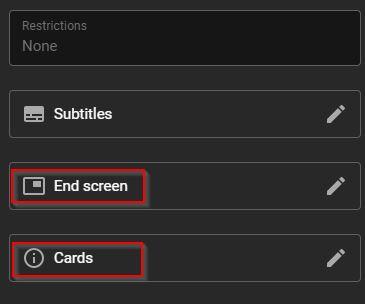
Google provides a detailed outline on how to create optimized end screens depending on several factors here.
Note that YouTube keeps on testing end screens to improve user experience. So, your end screen might not even appear sometimes.
You want to keep these factors in mind while creating your end screens or cards, even if they seem a little time-consuming and complicated.
To keep yourself motivated, just remember that the amount of time people spend watching YouTube videos on their TV is continuously increasing at a rapid pace.
End screens and cards can help you get more viewership for your YouTube channel.
Now, all the YouTube SEO tips we’ve discussed so far are easy to implement.
And, although most of them can be implemented on YouTube, some require the use of third-party SEO tools.
So, in the next section, we’ll be talking about the best YouTube SEO tools that can help you gain more organic visibility.
Let’s dive in.
YouTube SEO Tools Free
One of the first things you need to do for YouTube SEO is to find the right keywords to target in your videos.
You can’t expect to attract your target audience if you’re not talking about the stuff they’re searching for.
So, here’s a YouTube SEO tool that’d cover your keyword research needs.
Ahrefs Keyword Explorer
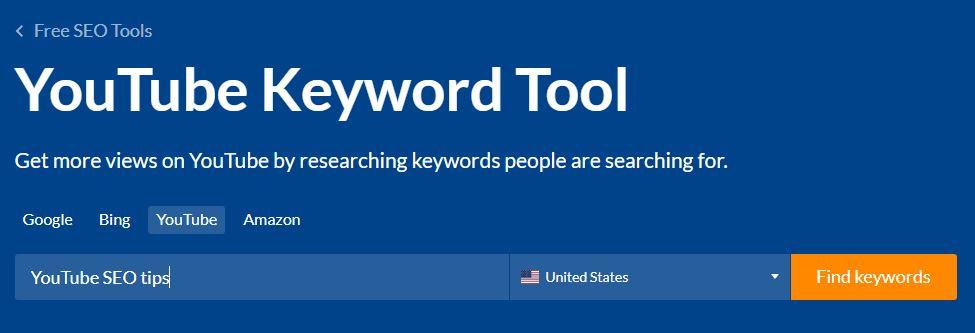
The good thing is you can use it for free. The not-so-good thing is there are limitations. But, if you want content ideas and don’t care much about the monthly search volume, it’s a great option.
Just visit the page, enter your main keyword, and hit “Find keywords”. You might also have to confirm that you’re not a robot by checking a box.
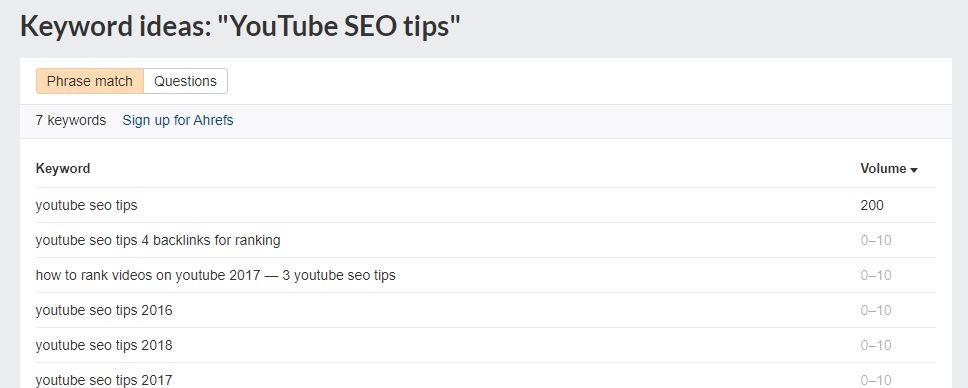
It’ll tell you the monthly search volume for your main keyword. Plus, you’ll get a list of related keywords, but not with the search volume.
Next, click on the “Questions” option to the right of “Phrase match”.
It’ll show you the questions related to your main keyword.
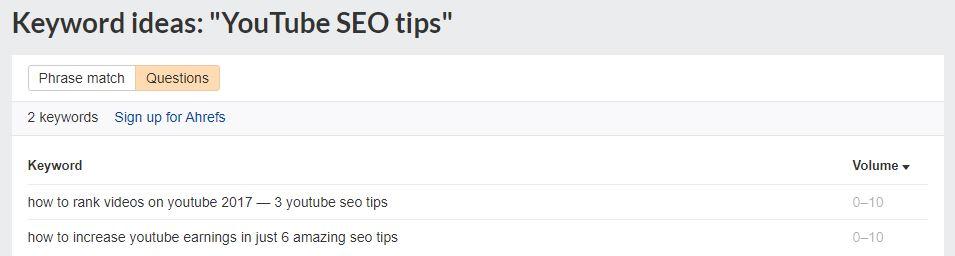
However, for keyword volume, you’ll need to purchase the paid version.
But, if you’re new, the free version is probably going to be enough.
Keywordtool.io
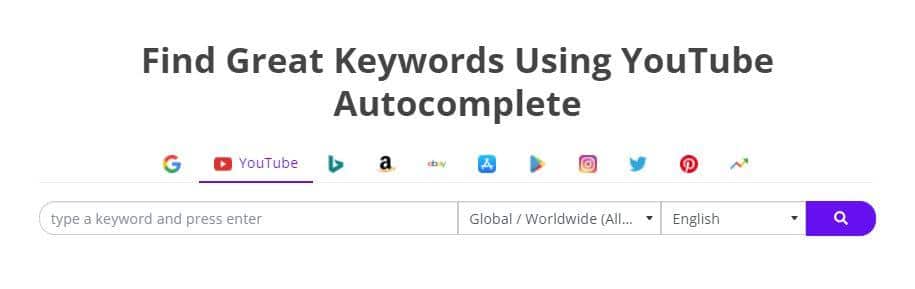
YouTube autocomplete is the easiest and most reliable way to find a bunch of keywords.
After all, the data is coming directly from YouTube.
What Keywordtool.io does is it gathers all the autocomplete keywords for your target phrase.
This includes keyword suggestions, questions, prepositions, and even hashtags.
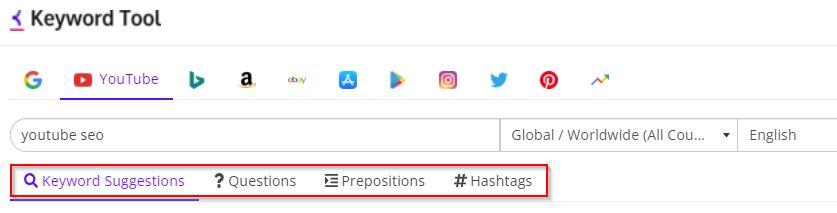
“Keyword Tool” gives you all the keyword variations for free.
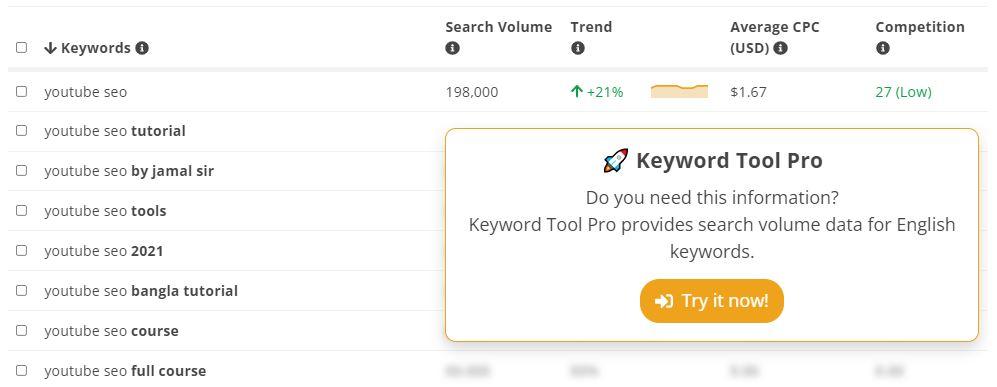
Plus, you get the search volume, trend, average CPC, and competition for your main keyword.
However, to get all that data for your keyword variations, you’d need to try the pro version.
With YouTube keyword research out of the way, let’s talk about another important YouTube SEO tool.
Canva
Although Canva is a graphics design tool, it can indirectly help you rank higher on the first page of YouTube.
See, a great thumbnail can easily boost your click-through rate, which in turn, can improve your organic rankings.
The cool thing is: You can do virtually everything with Canva without having to spend anything.
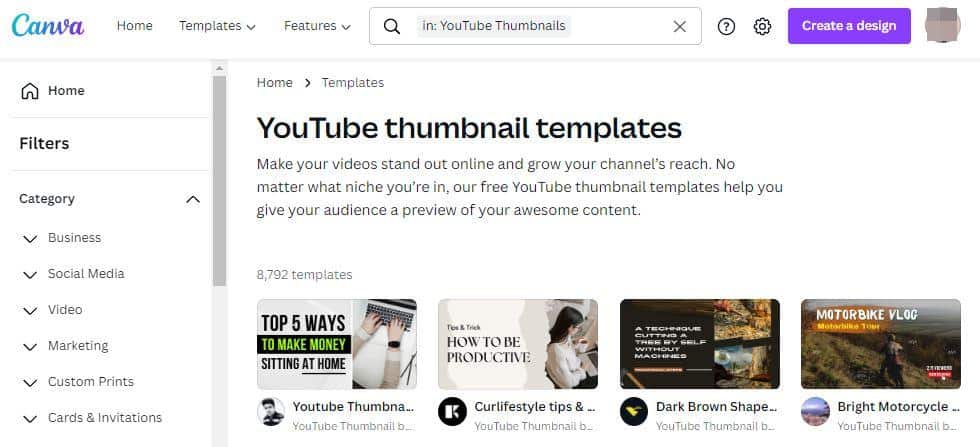
Image Source
What you can do is pick a free template you like and start editing it.
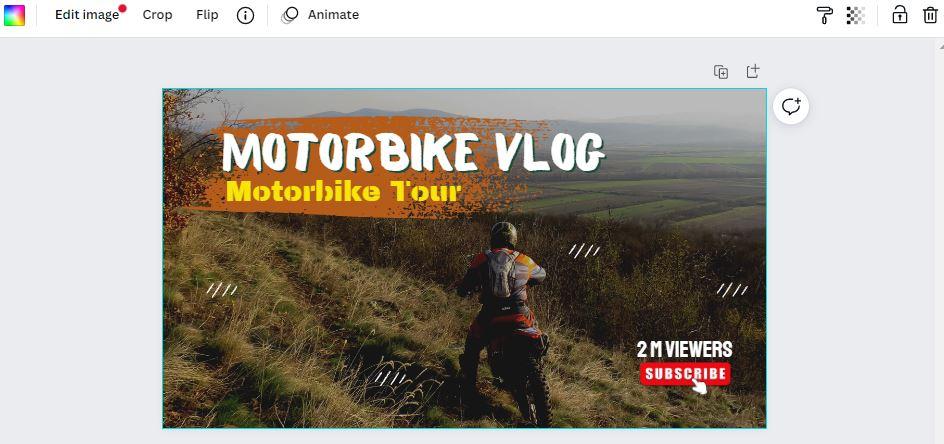
You can change the text, background image, colors, brightness, and more. You can even delete everything and start from scratch.
But, it’s a good idea to build your design from a template.
Of course, the thumbnail isn’t the only thing you can create with Canva. You can design your channel art, channel logo, end screens, cards, and more.
vidIQ

vidIQ is an all-in-one YouTube SEO tool. It tells you how your video is performing in terms of SEO, helping you optimize it for more visibility.
All you need to do is install vidIQs browser extension.
You can then see SEO suggestions from vidIQ while editing and uploading your video.
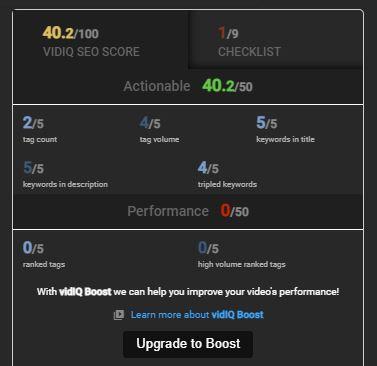
Or, you can see video analytics by previewing it in search results.
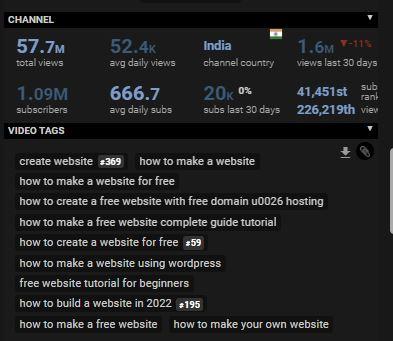
And, because it shows SEO data for any video you watch on YouTube, it’s great for competitor research, too.
For instance, you can use it to find competitor keywords.
TubeBuddy
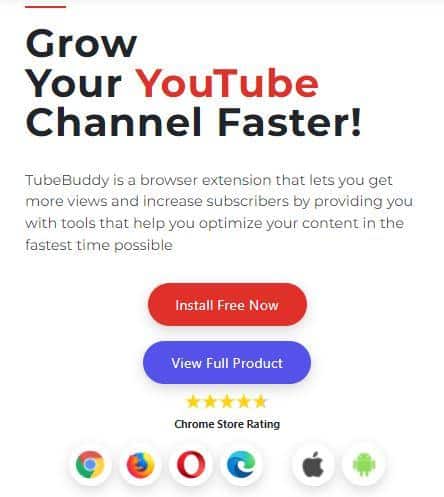
Tube Buddy is another all-in-one YouTube SEO tool with a free plan.
It’s a browser extension that assists in content production and optimization.
Tube Buddy’s dashboard is a bit cleaner and more user-friendly than vidIQ.
Here’s what it looks like when you install the extension and visit a YouTube video.
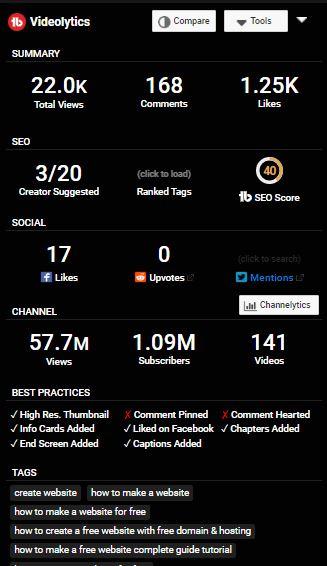
As you can see, the tool provides a lot of data about a video to help you outrank it.
A stand-out feature of Tube Buddy is its automatic language translator.
It can be incredibly useful if you want to rank for non-English keywords.
Tube Buddy’s other SEO features include:
- Best practice audit
- Insta-Suggest (Tag suggestions)
- Keyword explorer
- Opportunity Finder (Channel growth suggestions)
- SEO Studio (Video metadata optimization)
- Search Rank Tracker (Track your video rankings)
- Tag sorter
- And, even more
Cyfe
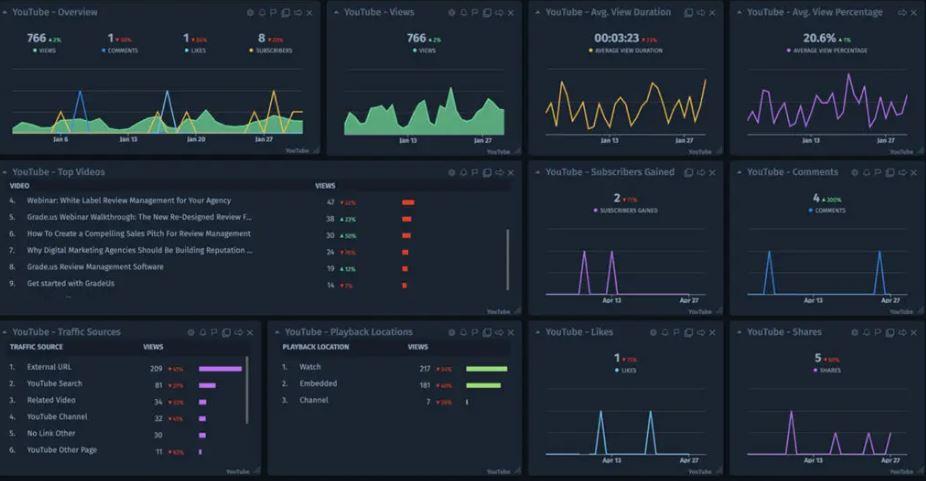
Cyfe offers a variety of YouTube SEO tools, including a web analytics platform.
The tool tells you which keywords are most popular on search engines and which ones are you ranking for.
Cyfe is a reliable YouTube SEO tool because it gives you the data from Google Analytics and Moz.
Keywords Everywhere
Keywords Everywhere is probably the most user-friendly YouTube SEO tool out there.
It’s also one of the most cost-effective ones. It has a free version, but you don’t get monthly search volumes on that.
The keyword data it provides directly comes from Google Keyword Planner, making it reliable.
The cool thing is: You just have to install the browser extension and it’ll show the data right on the video search engine.
After installing the Keywords Everywhere extension, just go to any video on YouTube.
You’ll see the following metrics on the right side.
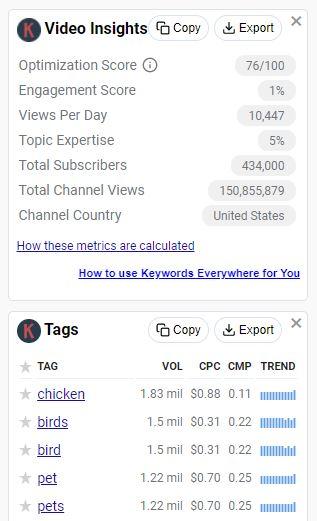
It’ll give you a bunch of useful metrics about the video and channel, including:
- The optimization score
- Engagement score
- Views per day
- Total subscribers
- Total channel views
Importantly, you’ll know what tags your competitor is using in their video.
This can help you gather relevant keywords to include in your YouTube videos.
Final Thoughts
By now, you have a lot of SEO tips and tools in your arsenal.
But, no matter which one of these you use, you need good content in order to make your YouTube channel successful.
So, in addition to optimizing your videos for SEO, make sure your audience finds your content relevant, useful, and high-quality.